

Disclaimer: This blog post was written primarily for Zuitt students. If you do not have a repository ready for use, you can use the open source code at:
Prerequisites:
Vue Application:
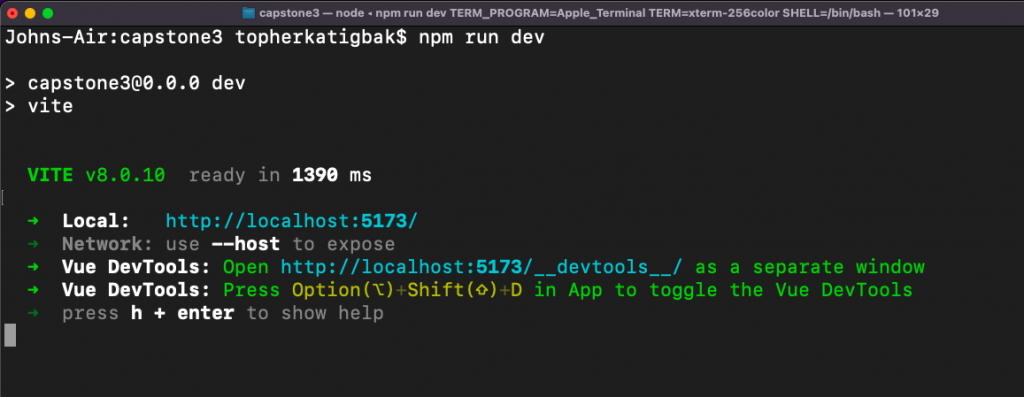
Your Vue JS application should be ready and tested locally.
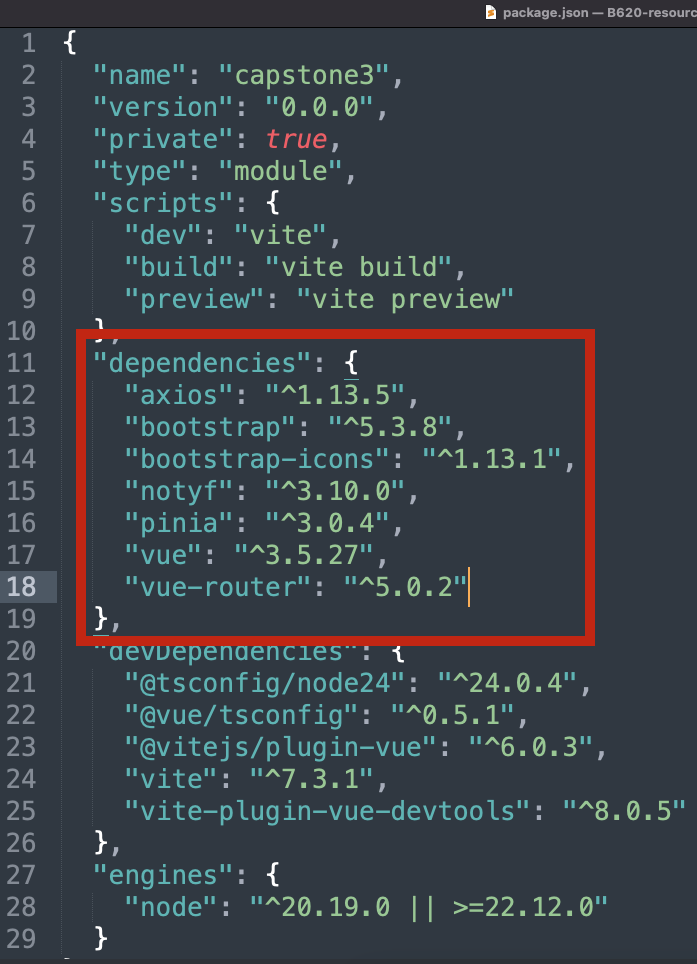
- Ensure that all dependencies are correctly listed in your package.json file.
GitLab Repository:
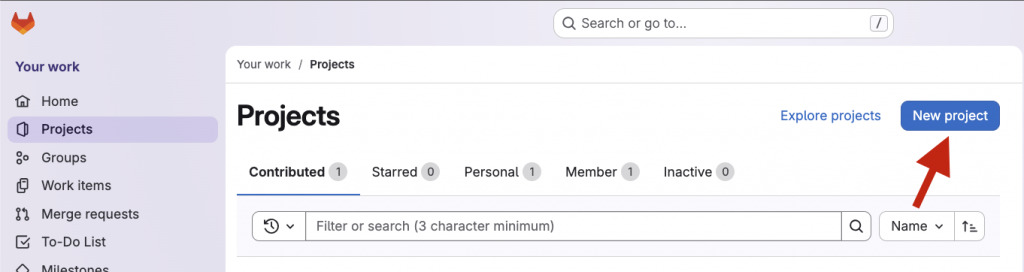
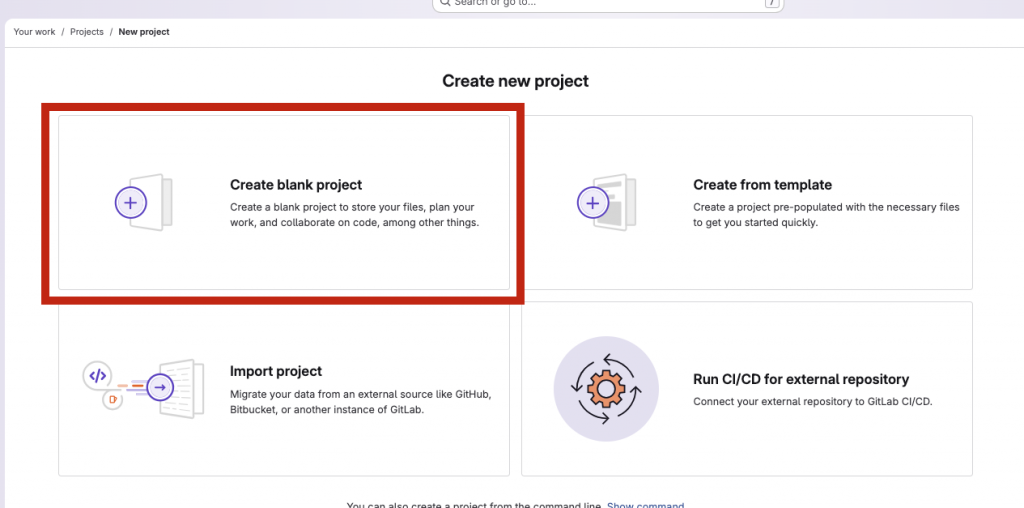
- Go to projects page: https://gitlab.com/dashboard/projects, and create a project repository for your app using “New Project” button
- Choose “Create blank project”
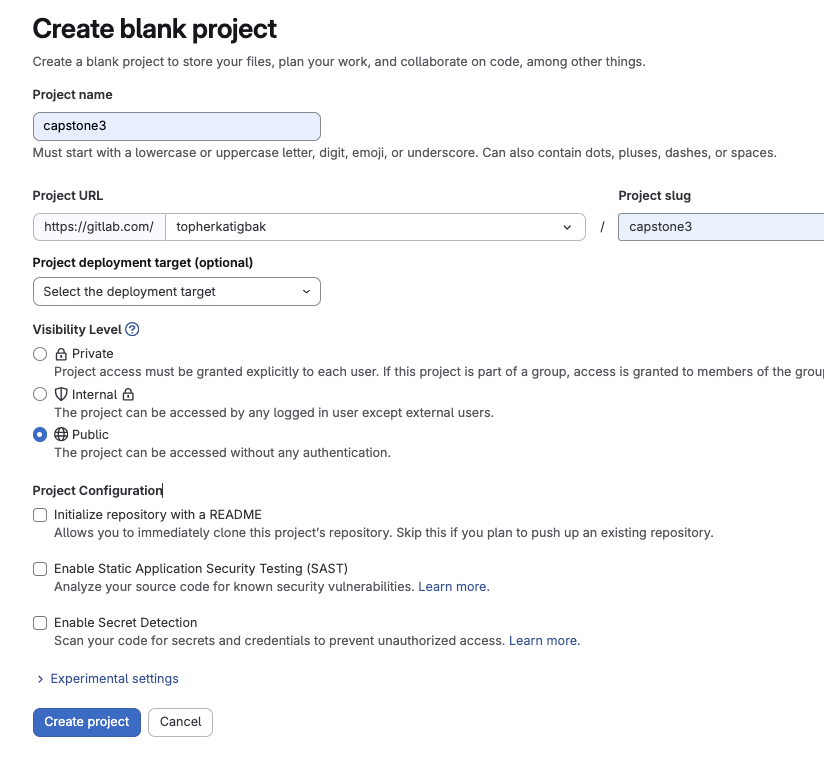
- Verify that your settings match the screenshot below.
- Enter a name for your project.
- Select the appropriate Group or Namespace for the Project URL.
- Set the Visibility Level to Public to make hosting and access easier.
- Clear the Initialize repository with a README checkbox.
- Once verified, click Create Project to complete the setup.
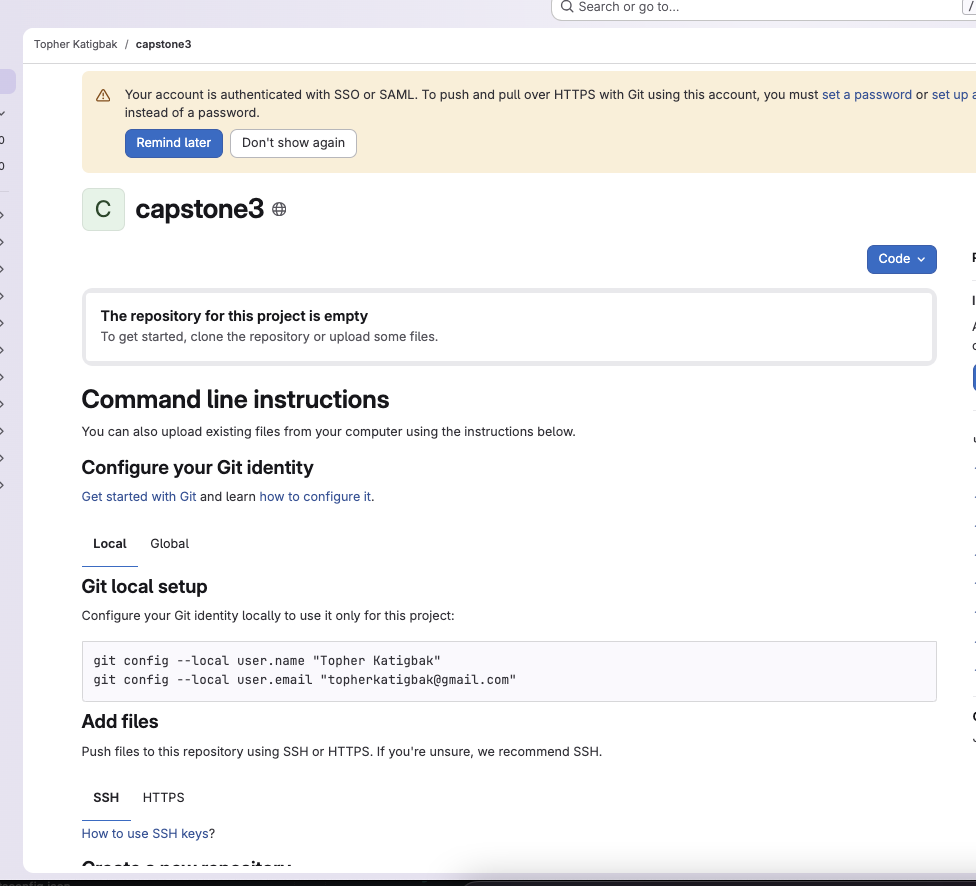
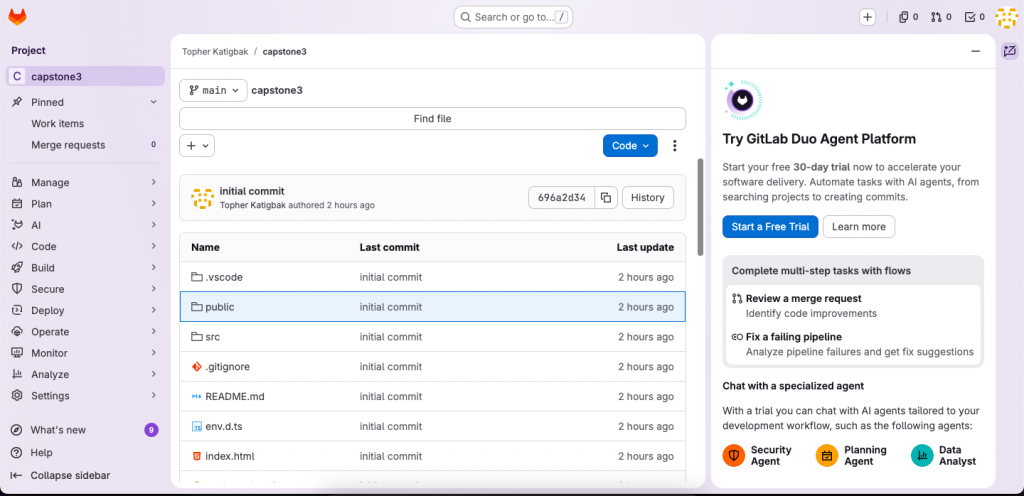
- Push / Upload your project files to your newly created project repository
Vercel Account:
- You need a Vercel account; if you don’t have one, you can sign up for free here. https://vercel.com/signup?next=%2Fnew
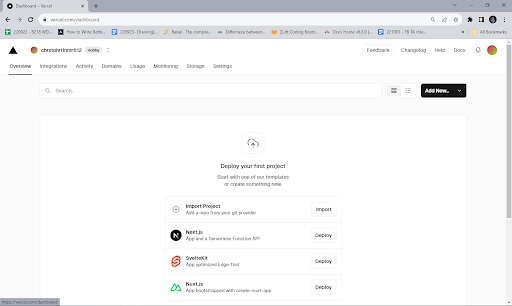
Deploying Vue Application:
- Login to your vercel account and connect your vercel account with GitLab
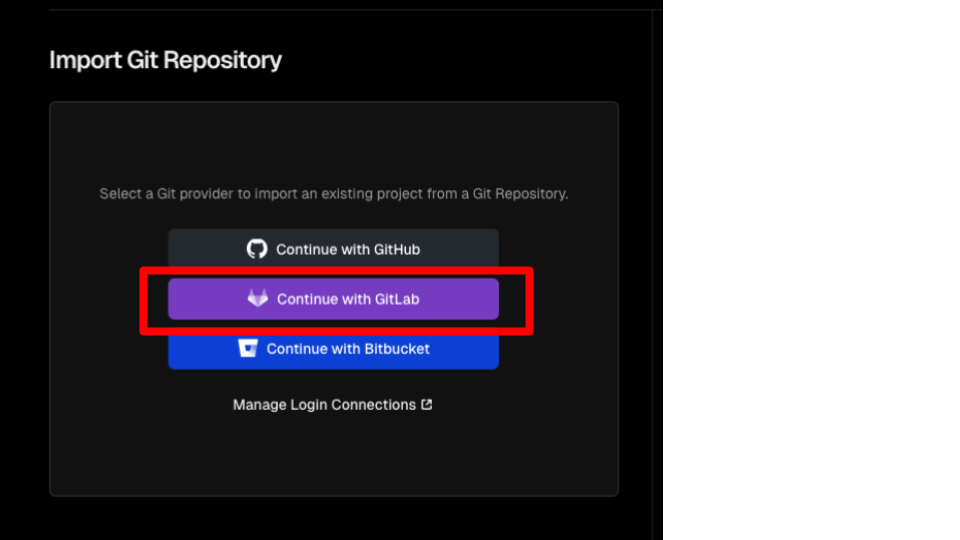
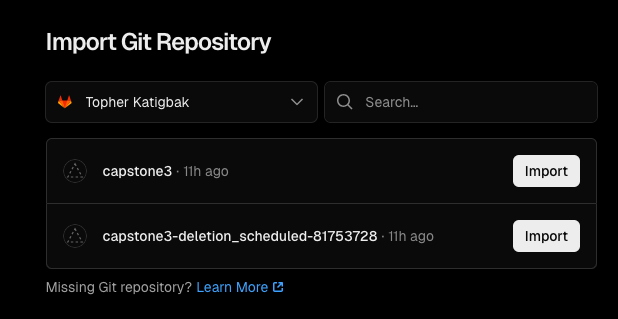
- Select Your GitLab Repository:
- After authorizing Vercel, you should see a list of your GitLab repositories. Select the repository where your Vue application is located.
Import and Configure Your Project:
- In the Vercel dashboard, click on the “New Project” or “Import Project” button.
- Vercel should auto-detect that you’re deploying a Vue application and suggest the necessary build settings, if not manually select “Vue JS” from the Project Application dropdown input box
- Verify or update the build settings, such as the build command (npm run build or yarn build) and output directory
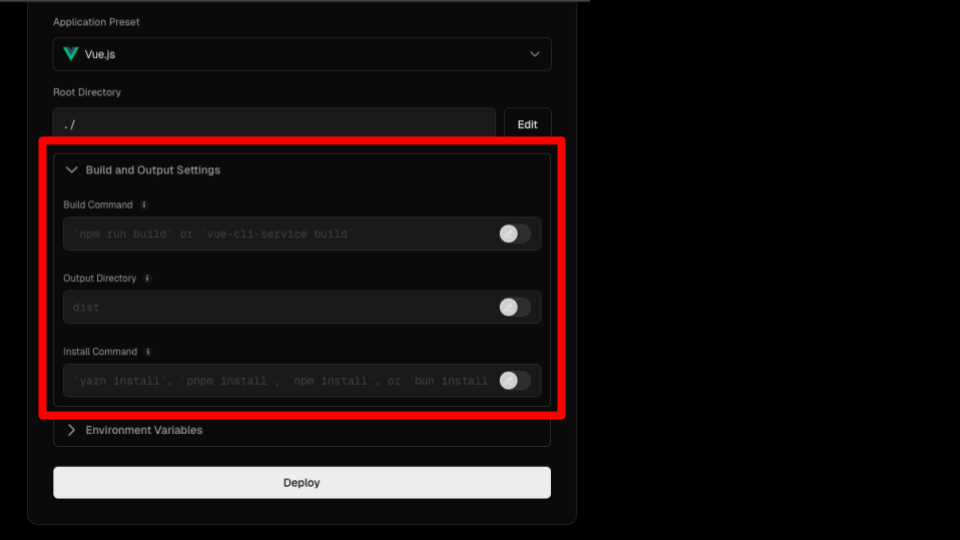
If your project needs environment variables, you can add them in the project configuration settings.
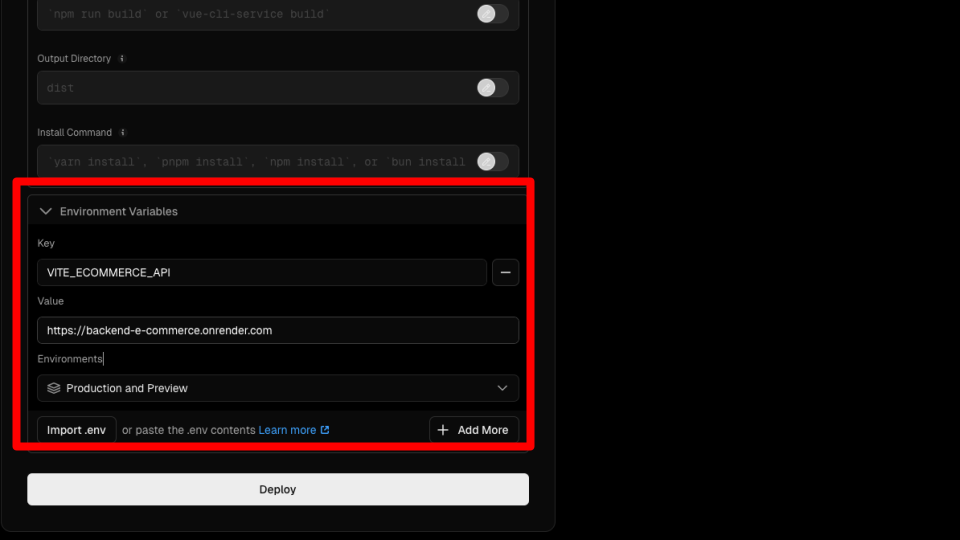
Deploy Your Application
Once you have configured your build settings and environment variables, click “Deploy.”
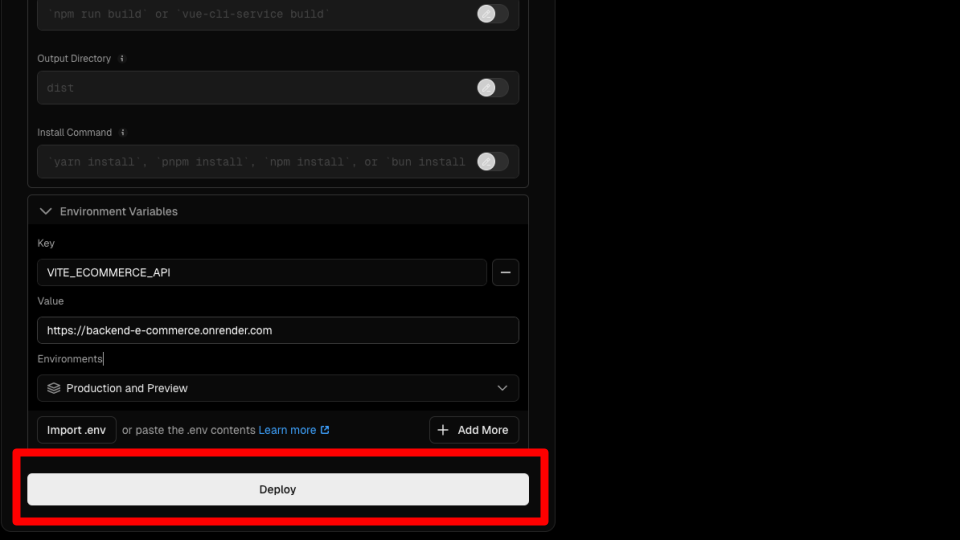
Vercel will then build and deploy your application. You can watch the progress in the dashboard
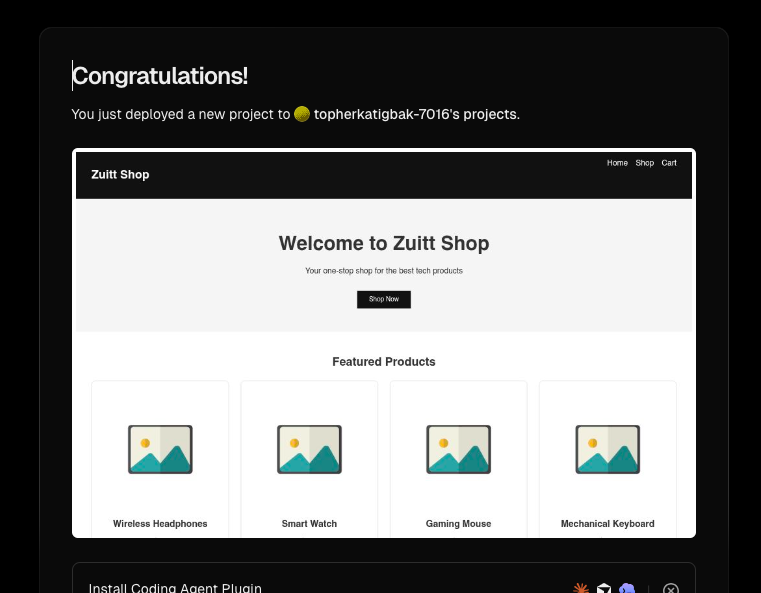
- Enable Continuous Deployments:
- With Vercel, continuous deployment is set up automatically.
- Every time you push new commits to the linked branch in your GitLab repository, Vercel will create a new deployment.
- Manage and Monitor Deployments:
- After deployment, you can manage your project through the Vercel dashboard
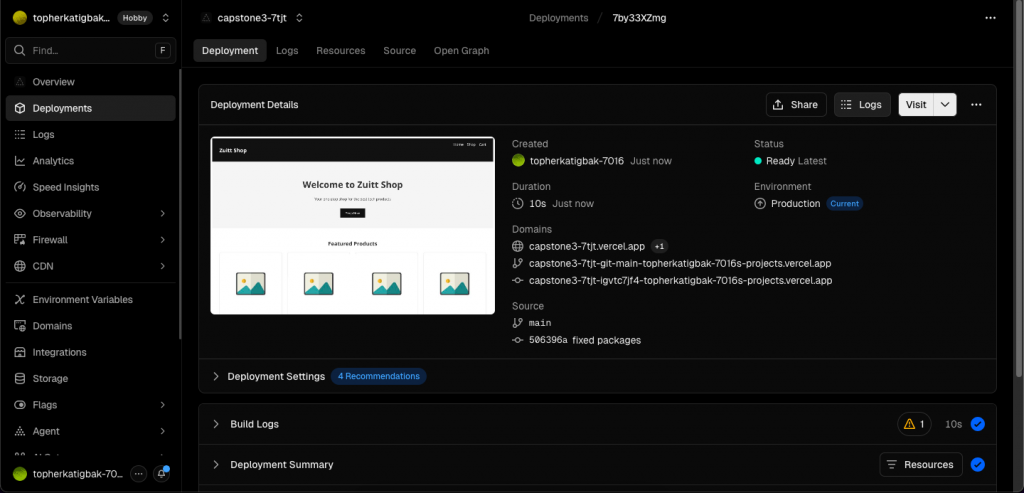
- Monitor your deployments, check logs, and analyze performance right from the browser.
Following these steps will get your Vue application deployed to Vercel through GitLab. Remember to consult Vercel’s official documentation ( https://vercel.com/docs ) for any updates or specific details relevant to your project.
If you’ve stumbled upon this blog post and aren’t a bootcamper, you can begin your bootcamp journey with Zuitt by clicking this link: https://codenow.zuitt.co/Vercel