
Instruction Links
Note:
- If the version number installed in your device is lower than the version provided in the screenshots, follow the steps below to install the updated version of the applications.
- If an updated version of the above provided applications are already installed in your device, the following instructions will still work with minor differences in the version of the app you’re shown in the output which should have no impact during the course of the BootCamp.
Google Chrome
Go to the home page
On the home page, click the Download Chrome button.

A popup will show, click the Accept and Install button.
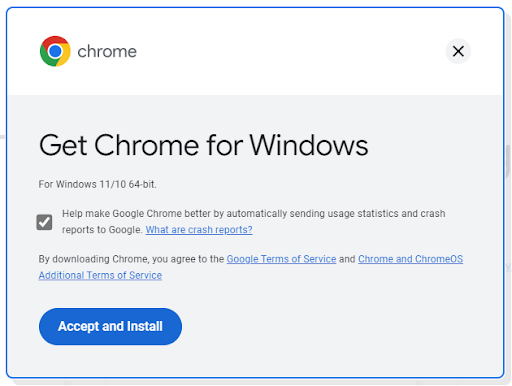
You will be prompted to download an installer after that, you can save the installer in your Downloads folder.
Use the installer
Execute the ChromeSetup.exe file that was downloaded earlier.

If the User Account Control dialog shows up, click Yes.

The installer will download the necessary files to actually install Google Chrome.

After the installation, the Google Chrome window will automatically open.

Git
Use the installer
Execute the downloaded installer.

If the User Account Control dialog shows up, click Yes.

Click Next.

Let the destination location be in C:\Program Files\Git and click Next.

Do not change the default selected components and click Next.

Allow the installer to create a Start Menu folder and click Next.

Do not change the default editor to be used by Git and click Next.

Allow Git to be used in command-line and from 3rd party software then click Next.

Do not change the HTTPS transport backend to be used and click Next.

Do not change the default line ending conversion configuration and click Next.

Do not change the default terminal emulator for Git bash and click Next.

Do not change the configuration of extra options and click Install.

Wait for the installer to finish.

Uncheck View Release Notes and click Next to close the installer window.

Verify installation
To verify installation of Git, press Windows Key + R then type cmd to open a command prompt.

Inside the command prompt, type git –version to output the version of the installed program.

Session 0: Environment Checks Activity
Diagnostic Script Tool for JS OOP Windows
Goal: Verify that all necessary software and applications are installed on your machines (computers).
Directions: Follow the set of instructions below.
Step 1: Download the zip file here: zuitt-diagnostic-tools-win.zip
Step 2: Unzip the file: zuitt-diagnostic-tools-win-v2.zip

Step 3: Navigate to the zuitt-diagnostic-tools-win folder. All required content should be inside this directory.
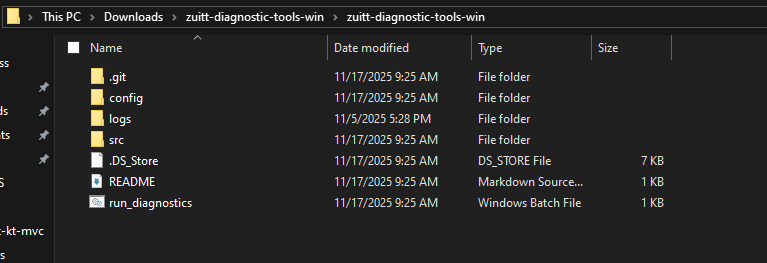
Step 4: Open your Git Bash/Command Prompt
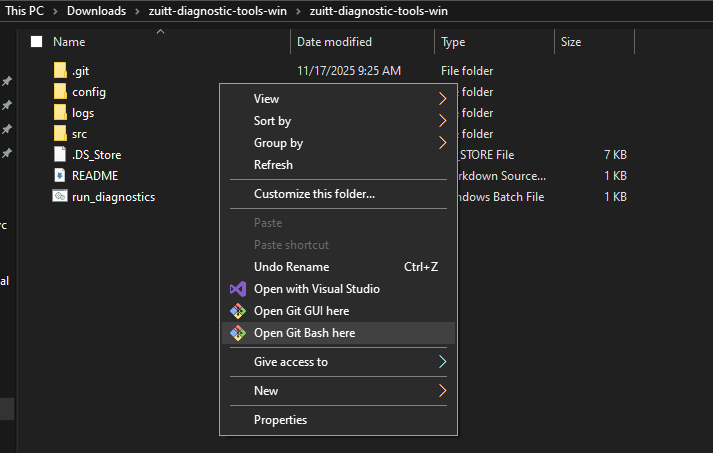
Step 5: You can run diagnostics for JS OOP by passing it as an argument to the script:
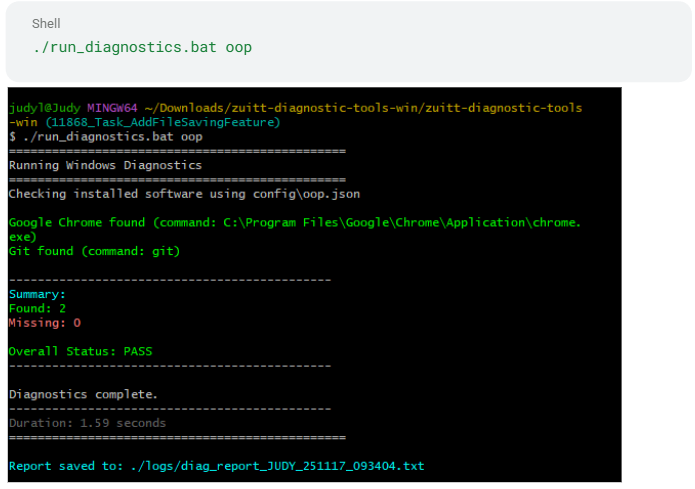
Note: If any applications, tools, or software are missing, install them first, then re-run the command.
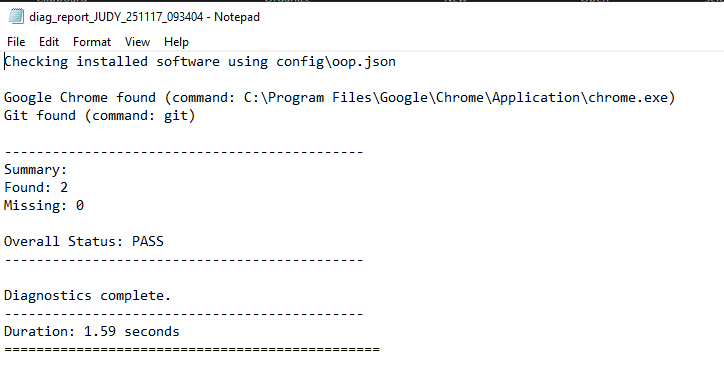
Step 6: After running the diagnostic tool, a text file will be generated inside the logs folder.

Inside the .txt file
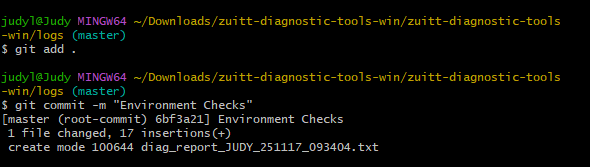
Step 7: Save the .txt file to the Zuitt Git repository. Then, update your local individual Git repository by adding the s01 folder and pushing it with the commit message “Environment Checks.”
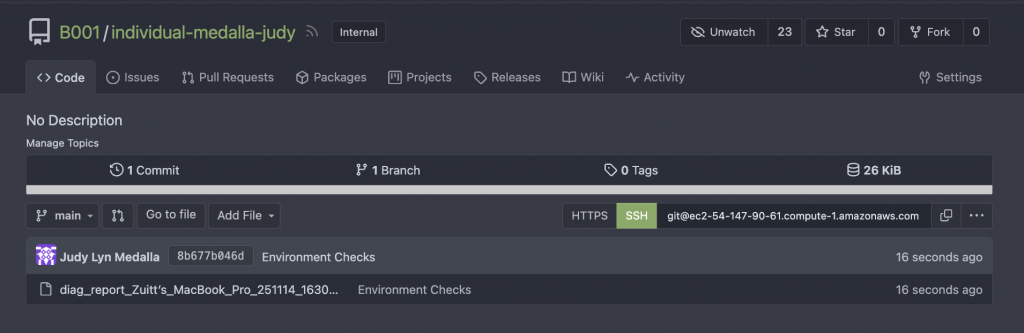
Copy the URL
Step 8: Log in to Boodle by clicking on this link (https://boodle.zuitt.co/login/). Make sure you are logged in to the email you provided to zuitt to access the app.

Step 9: Look for the Add URL button under Session 1- Objects Review and click on the button.
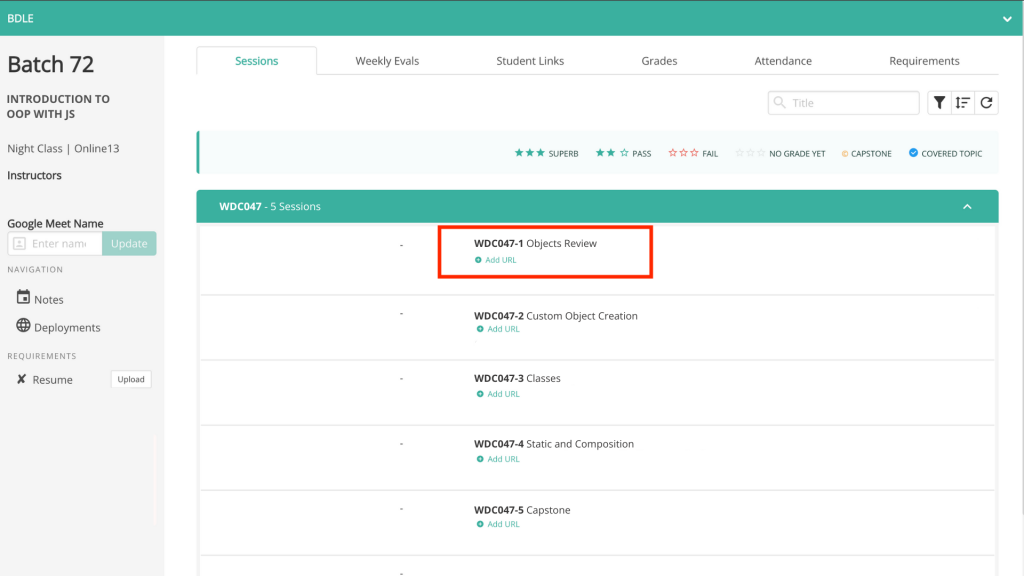
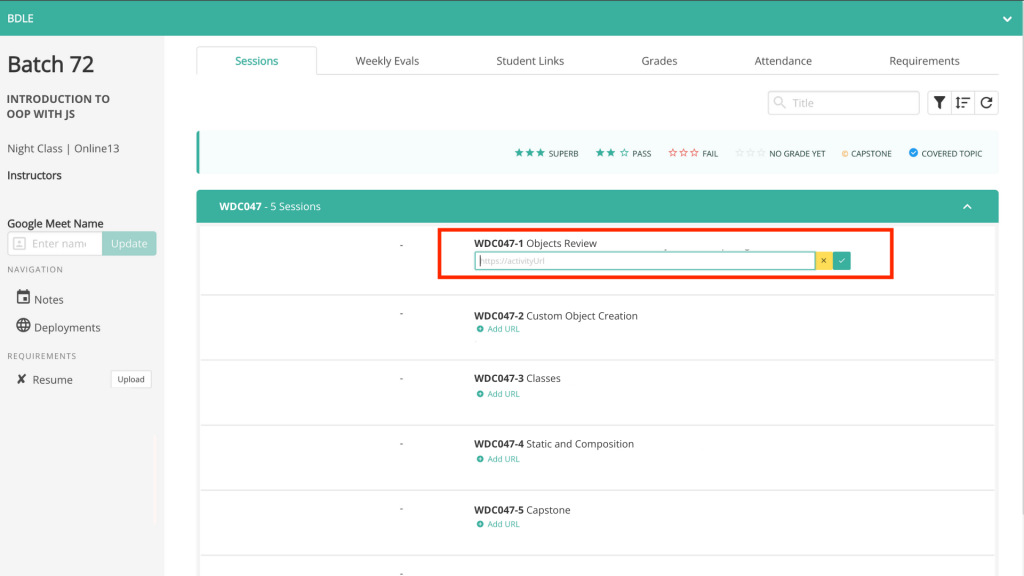
Step 10: Upon clicking the button, an input field/box will appear, which will allow you to add a link/URL to the previously copied link from Zuitt Git. Add the link and click on the check mark button to submit your output.
If you’ve stumbled upon this blog post and aren’t a bootcamper, you can begin your bootcamp journey with Zuitt by clicking this link: